Install the Android app
Open the verified Google Play listing and add Private VPN Proxy to the phone or tablet you plan to use.
Download Private VPN Proxy, choose Argentina, and start an encrypted Android connection in one tap. Choose Argentina when you want a South American VPN route without configuring servers by hand. Private VPN Proxy brings the country choice, tunnel status, and protocol controls into one Android experience that is easy to revisit during a long browsing session.
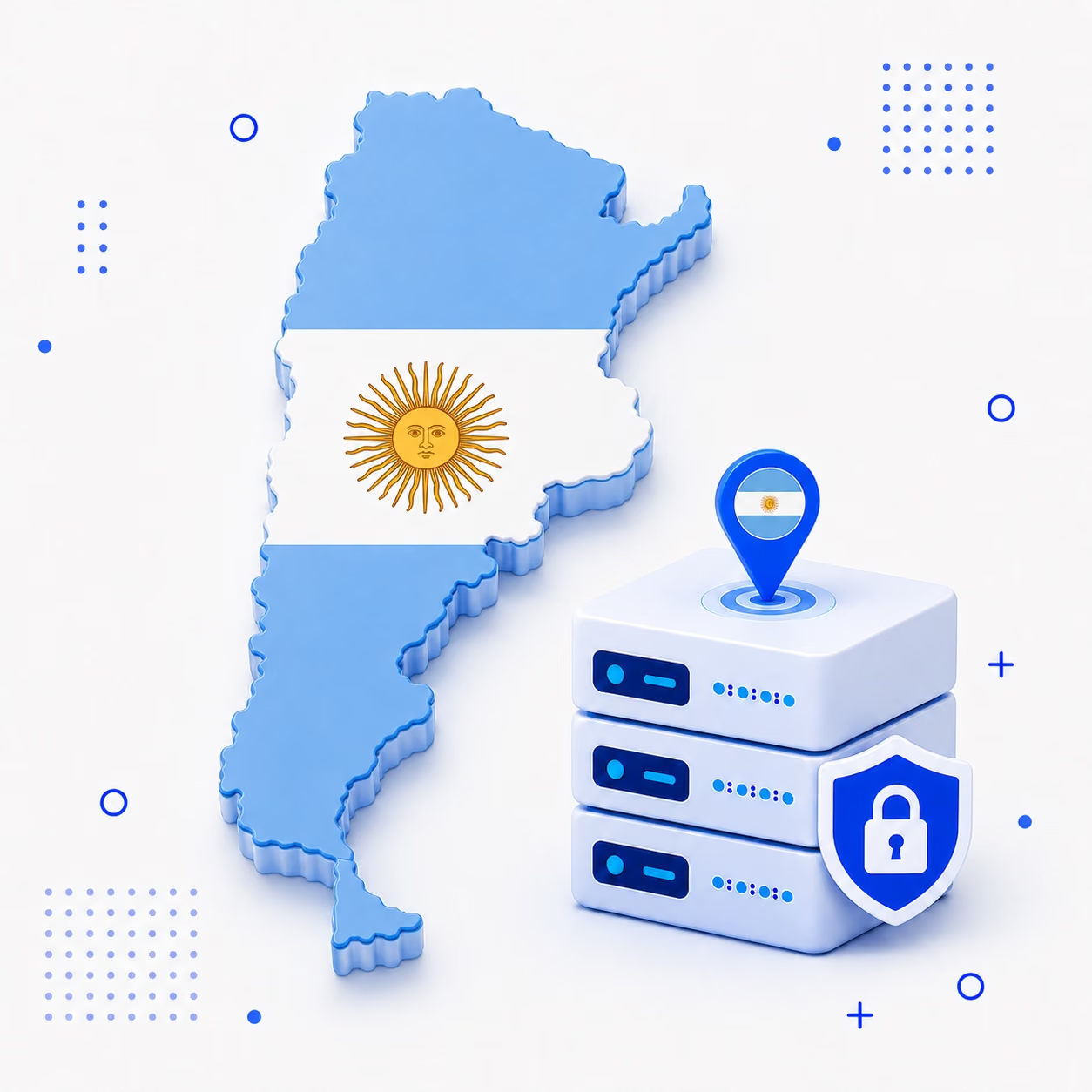
Move from the official download to a confirmed Argentine connection without creating a manual profile. Confirm that Argentina is currently displayed in the app before connecting.
Open the verified Google Play listing and add Private VPN Proxy to the phone or tablet you plan to use.
Enter the destination directory, locate Argentina alphabetically, and assign it to the upcoming session.
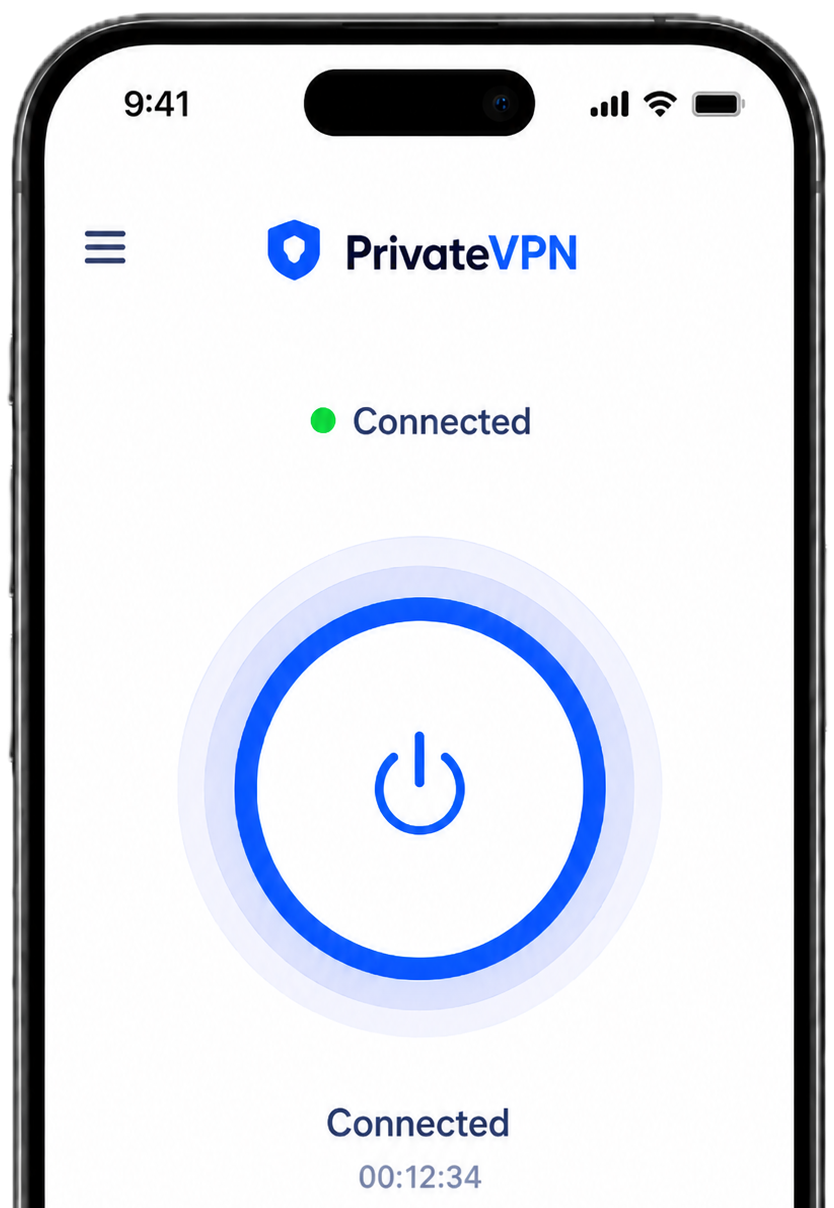
Press connect and wait until the interface confirms that traffic is using the protected Argentine route.
The app combines a recognizable destination with privacy controls designed to remain understandable throughout the session.
Country-based selection replaces raw addresses and configuration files, making the Argentine endpoint easier to find again later.
The tunnel begins on Android and adds protection before data crosses a shared router in a café, airport, workplace, or accommodation.
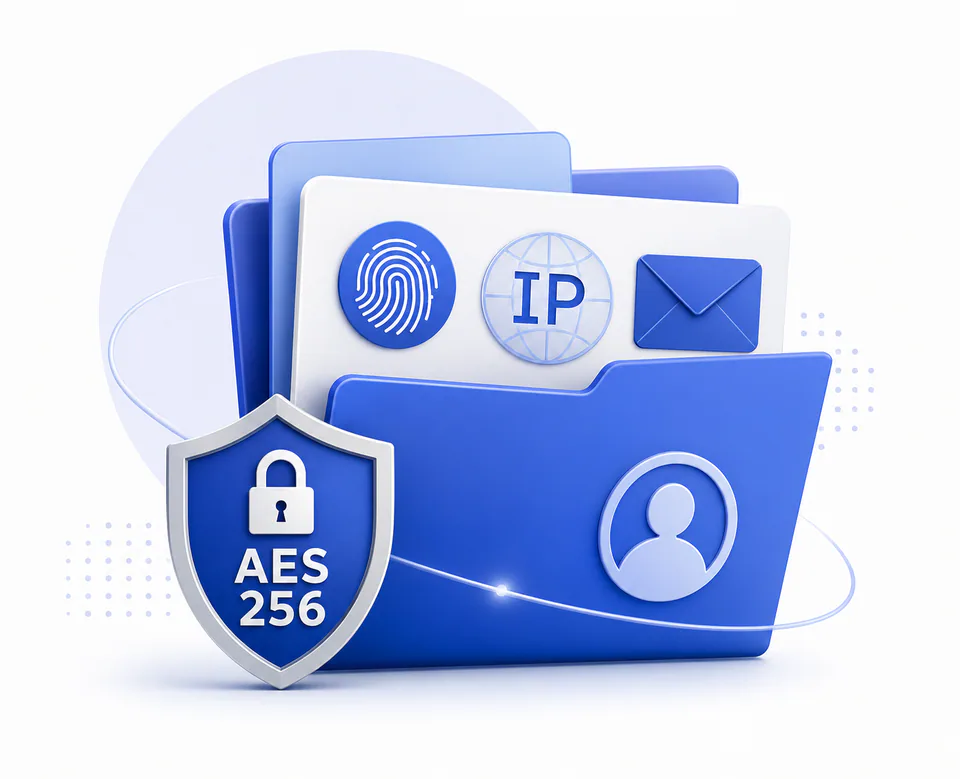
Connection feedback helps you recognize an interruption, review the chosen protocol, or disconnect deliberately when the online task is complete.

Yes. Private VPN Proxy shows its current free and premium choices inside the Android app. Look for Argentina in that country list to see the access available to you.
Review any displayed limits or plan notes before starting the route, because country coverage and free availability can be adjusted as the network changes.

After installing the app, choose Argentina from the destination list and activate the main control. A positive status indicator tells you when the encrypted route is ready.
Open the official Google Play listing
Return to the worldwide directory whenever the next session calls for a different route. Changing away from Argentina does not require another installation. The live in-app list determines which routes are currently available.
Use focused safeguards to understand and manage the route through the Argentine endpoint.
Find the country directly rather than interpreting an internal server label.
Choose an available protocol suited to the behavior of the current network.
Check that Argentina remains active before sending more Android traffic.
Help keep supported domain requests aligned with the selected VPN path.
Make traffic less readable while it crosses the nearby wireless or mobile provider.
Change settings or end the Argentine connection through readable touch controls.
Current features can vary by app version, server and plan. Review the options shown in the Android app before connecting through Argentina.
 Country selection
 WireGuard support
 OpenVPN support
 DNS leak protection
 Kill switch support
 Visible connection status
 Split tunneling
 Android compatibility
 Free and premium choices
 One-tap connection
 Public Wi-Fi protection
 No registration required
Learn how the Argentine endpoint behaves and what to review before an Android connection.
Eligible traffic is sent through the chosen Argentine VPN endpoint while the link between Android and Private VPN Proxy is encrypted.
No. Choose Argentina from the built-in country directory and let the app handle the underlying server configuration.
Not necessarily. Current free destinations, premium options, and usage information are displayed inside Private VPN Proxy.
No. Speed depends on distance, congestion, device conditions, and the local internet provider as well as the VPN route.
Yes. Review the indicator after network changes or interruptions to make sure the Argentina tunnel is still active.
Use the official Private VPN Proxy listing on Google Play for the intended Android package and update channel.
Get the Android app from Google Play, choose Argentina from the country list, and start your encrypted connection with one tap.

 Afghanistan
 Albania
 Algeria
 Andorra
 Angola
 Antigua and Barbuda
 Armenia
 Australia
 Austria
 Azerbaijan
 Bahamas
 Bahrain